
How To Use winlottosystems
This page is a step by step guide to help you use your winlottosystems software effectively.
However, please note, simply using winlottosystems software by itself will not help you trigger a never-ending win streak.
To strike it rich, you MUST thoroughly read and absorb the indispensable manual 'Win BIG By Winning Small First' (which comes free with winlottosystems Premium).
_____You can also view a short VIDEO TUTORIAL by clicking here.
Instructions on how to use winlottosystems are divided into the following steps:
Step 1 - Default Values
Step 2 - Selecting the system type
Step 3 - Selecting the prize guarantee
Step 4 - Selecting the number of selections
Step 5 - Entering your selections
Step 6 - Generating your system
Step 7 - Saving your selections
Step 8 - Loading your saved selections
Step 9 - Checking Your Results
If you require technical support, please refer to our comprehenisve FAQ page.
Step 1: Default Values
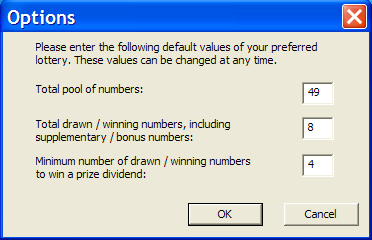
Upon installation, you had the opportunity to enter a series of values to reflect the design parameters of your favourite lottery in the following screen:
If you did not enter these values at installation, or wish now to review or change them, press 'File' located on the top left-hand corner of the main screen, and select 'Options...'
These values can be changed at any time. They include:
• The total pool of numbers your preferred lottery plays, e.g. 49
• The total number of drawn or winning numbers (inc supplementary / bonus numbers) of your preferred lottery, e.g. 6 winning plus 2 bonus numbers = 8
• The minimum number of drawn or winning numbers you must have to win a prize dividend, e.g. 4
Your software is now ready to start using.
You must now make three primary decisions (System Type, Prize Guarantee, Number of Selections) to configure your desired system. These are discussed in Steps 2 through 4.
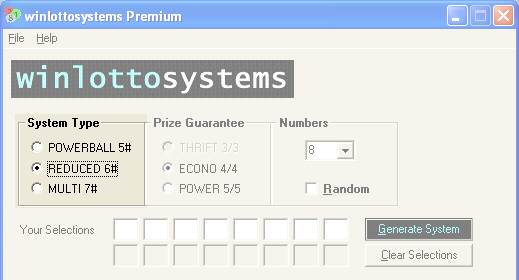
Step 2: Select System Type
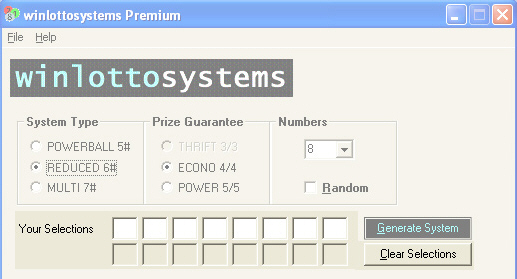
Select which type of system you wish to play, by pressing the corresponding button.
__POWERBALL #5 - which will generate a series of five-number combinations.
__REDUCED #6 - which will generate a series of six-number combinations.
__MULTI #7 - which will generate a series of seven-number combinations.
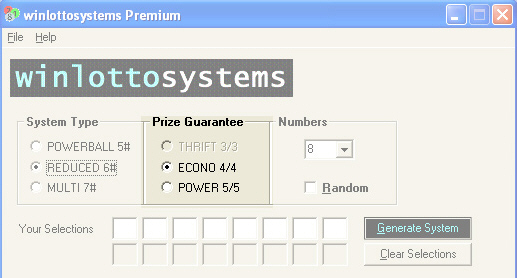
Step 3: Select Prize Guarantee
Select which prize-guarantee you wish to play, by pressing the corresponding button.
__THRIFT - match three numbers - win a three-number prize (Powerball only)
__ECONO - match four numbers - win a four-number prize (all winlottosystems)
__POWER - match five numbers - win a five-number prize (Reduced & Multi only)
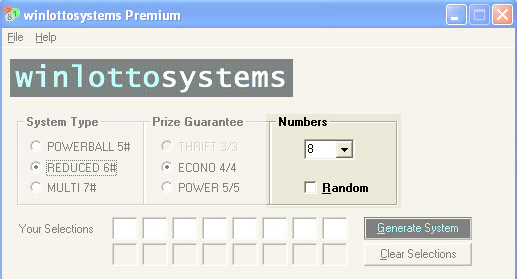
Step 4: Select Number of Selections
Click the right-hand side of the drop down menu, and then select the number of selections you wish to play. Reduced and Powerball Systems play any 8 to 16 numbers, while Multi Systems play any 9 to 16 numbers.
Step 5: Enter Your Selections
You can enter any set of 8 to 16 selections in one of three ways:
__1. Type your nominated selections directly into the grid of blank squares;
__2. Generate a random set of numbers by checking the 'Random' box;
__3. Load a previously saved set of selections (see Step 8).
Press the 'Clear Selections' button to erase all numbers in the grid. Pressing this option will also clear the 'Random' check box.
Step 6: Generate Your System
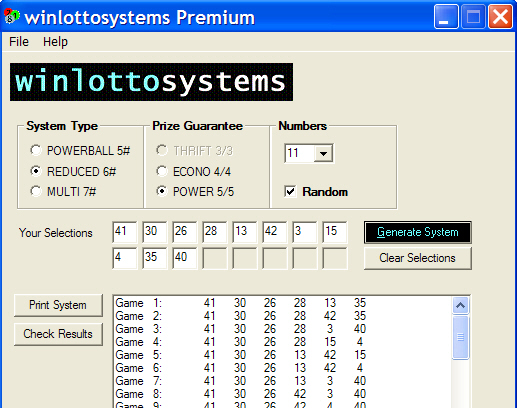
Press the 'Generate System' button to display your desired winlottosystem combinations on the screen. If you wish to print a hard-copy of your system, press the 'Print System' button and the standard Print dialog box will appear.
Step 7: Saving Your Selections
To save the current set of selections for later use, press 'File' located on the top left-hand corner of the main screen, and select 'Save...' The 'Save Selection...' dialog box will appear. Choose where on your computer you would like to save the winlottosystems data file (.wls), and press the 'Save' button.
Step 8: Loading Your Saved Selections
To load (or open) a saved set of selections, press 'File' located on the top left-hand corner of the main screen, and select 'Load...' The 'Open Selection...' dialog box will appear. Locate where on your computer you store your saved winlottosystem data files (.wls), click on the desired file, and press the 'Open' button.
Step 9: Checking Your Results
You can check your winlottosystem or saved set of numbers (see Step 7) with any set of actual or nominated drawn / winning numbers.
1. Load or generate your desired winlottosystem so that a series of lotto system combinations appear on the screen (as illustrated below).
2. Press 'Check Results' button, and the 'Enter Winning Lotto Numbers' dialog box will appear. Enter your nominated numbers or actual drawn lottery results directly into the grid, or press the 'Random Numbers' button to generate a set of random numbers.
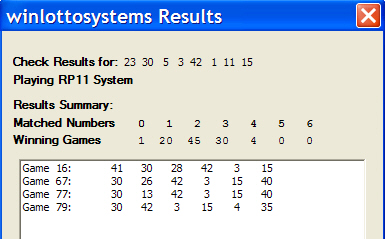
3. Press 'Check Results' button, and a 'winlottosystems Results' dialog box will appear with a Results Summary (see below for example).
The 'Matched Numbers' field indicates all combinations from 0 to 7 (depending on the System Type you are playing). For example, the value which appears under '0' (1 in the illustration above) indicates that this number (1) of system combinations (or games) had 0 matches with the drawn / winning numbers you entered, etc.
The 'Winning Games' field indicates the number of games within your winlottosystem that matched 0, 1, 2, 3, 4, 5, 6 and 7 (depending on the System Type you are playing) of the drawn / winning numbers you are checking. The total number of games will equal the total number of games played by the system. For example, referring to the illustration above, this particular system has 4 six-number combinations (games) that matched 4 of the winning numbers.
All winlottosystem games that match the minimum number of selections (as defined by your default values, see Step 1) will appear in the window.
4. If you wish to print these results as a hard copy, press the 'Print' button located at bottom of this Results screen.
However, please note, simply using winlottosystems software by itself will not help you trigger a never-ending win streak.
To strike it rich, you MUST thoroughly read and absorb the indispensable manual 'Win BIG By Winning Small First' (which comes free with winlottosystems Premium).
_____You can also view a short VIDEO TUTORIAL by clicking here.
Instructions on how to use winlottosystems are divided into the following steps:
Step 1 - Default Values
Step 2 - Selecting the system type
Step 3 - Selecting the prize guarantee
Step 4 - Selecting the number of selections
Step 5 - Entering your selections
Step 6 - Generating your system
Step 7 - Saving your selections
Step 8 - Loading your saved selections
Step 9 - Checking Your Results
If you require technical support, please refer to our comprehenisve FAQ page.
Step 1: Default Values
Upon installation, you had the opportunity to enter a series of values to reflect the design parameters of your favourite lottery in the following screen:
If you did not enter these values at installation, or wish now to review or change them, press 'File' located on the top left-hand corner of the main screen, and select 'Options...'
These values can be changed at any time. They include:
• The total pool of numbers your preferred lottery plays, e.g. 49
• The total number of drawn or winning numbers (inc supplementary / bonus numbers) of your preferred lottery, e.g. 6 winning plus 2 bonus numbers = 8
• The minimum number of drawn or winning numbers you must have to win a prize dividend, e.g. 4
Your software is now ready to start using.
You must now make three primary decisions (System Type, Prize Guarantee, Number of Selections) to configure your desired system. These are discussed in Steps 2 through 4.
Step 2: Select System Type
Select which type of system you wish to play, by pressing the corresponding button.
__POWERBALL #5 - which will generate a series of five-number combinations.
__REDUCED #6 - which will generate a series of six-number combinations.
__MULTI #7 - which will generate a series of seven-number combinations.
Step 3: Select Prize Guarantee
Select which prize-guarantee you wish to play, by pressing the corresponding button.
__THRIFT - match three numbers - win a three-number prize (Powerball only)
__ECONO - match four numbers - win a four-number prize (all winlottosystems)
__POWER - match five numbers - win a five-number prize (Reduced & Multi only)
Step 4: Select Number of Selections
Click the right-hand side of the drop down menu, and then select the number of selections you wish to play. Reduced and Powerball Systems play any 8 to 16 numbers, while Multi Systems play any 9 to 16 numbers.
Step 5: Enter Your Selections
You can enter any set of 8 to 16 selections in one of three ways:
__1. Type your nominated selections directly into the grid of blank squares;
__2. Generate a random set of numbers by checking the 'Random' box;
__3. Load a previously saved set of selections (see Step 8).
Press the 'Clear Selections' button to erase all numbers in the grid. Pressing this option will also clear the 'Random' check box.
Step 6: Generate Your System
Press the 'Generate System' button to display your desired winlottosystem combinations on the screen. If you wish to print a hard-copy of your system, press the 'Print System' button and the standard Print dialog box will appear.
Step 7: Saving Your Selections
To save the current set of selections for later use, press 'File' located on the top left-hand corner of the main screen, and select 'Save...' The 'Save Selection...' dialog box will appear. Choose where on your computer you would like to save the winlottosystems data file (.wls), and press the 'Save' button.
Step 8: Loading Your Saved Selections
To load (or open) a saved set of selections, press 'File' located on the top left-hand corner of the main screen, and select 'Load...' The 'Open Selection...' dialog box will appear. Locate where on your computer you store your saved winlottosystem data files (.wls), click on the desired file, and press the 'Open' button.
Step 9: Checking Your Results
You can check your winlottosystem or saved set of numbers (see Step 7) with any set of actual or nominated drawn / winning numbers.
1. Load or generate your desired winlottosystem so that a series of lotto system combinations appear on the screen (as illustrated below).
2. Press 'Check Results' button, and the 'Enter Winning Lotto Numbers' dialog box will appear. Enter your nominated numbers or actual drawn lottery results directly into the grid, or press the 'Random Numbers' button to generate a set of random numbers.
3. Press 'Check Results' button, and a 'winlottosystems Results' dialog box will appear with a Results Summary (see below for example).
The 'Matched Numbers' field indicates all combinations from 0 to 7 (depending on the System Type you are playing). For example, the value which appears under '0' (1 in the illustration above) indicates that this number (1) of system combinations (or games) had 0 matches with the drawn / winning numbers you entered, etc.
The 'Winning Games' field indicates the number of games within your winlottosystem that matched 0, 1, 2, 3, 4, 5, 6 and 7 (depending on the System Type you are playing) of the drawn / winning numbers you are checking. The total number of games will equal the total number of games played by the system. For example, referring to the illustration above, this particular system has 4 six-number combinations (games) that matched 4 of the winning numbers.
All winlottosystem games that match the minimum number of selections (as defined by your default values, see Step 1) will appear in the window.
4. If you wish to print these results as a hard copy, press the 'Print' button located at bottom of this Results screen.


|
About winlottosystems
© in2play 1995-2010
Warning: This computer program is protected by copyright law and international treaties.
Unauthorised reproduction or distribution of this program, or any portion of it, may result
in severe civil and criminal penalties, and will be prosecuted to the maximum extent
possible under the law.
Technical Support
For all support, feedback and comments, please visit our comprehensive FAQ page.
If your question is not answered there, please submit your enquiry or technical support
issue using the Contact Us form.
|

© in2play - Prof William R Foster. All rights reserved.
| Become An Affiliate | FAQ | Privacy | Disclaimer | Testimonials |
www.winlottofrequently.com
| Become An Affiliate | FAQ | Privacy | Disclaimer | Testimonials |
www.winlottofrequently.com